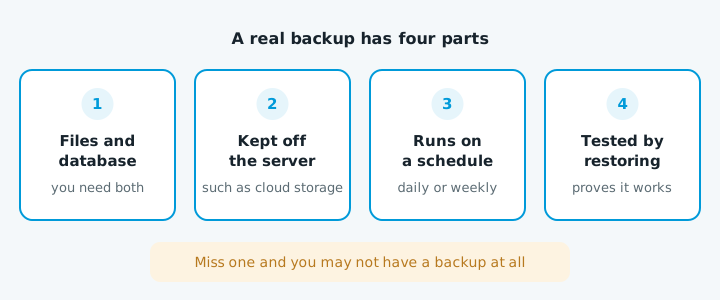
A real backup has four parts: it copies the files and the database, it's kept somewhere other than the server, it runs on a schedule, and someone has restored from it to prove it works. Miss one and you may not have a backup at all.
What a WordPress backup has to include
WordPress's own guide says there are two parts to a backup, and you need both:
- The database. Your pages, posts, settings and comments.
- The files. WordPress itself, the theme, the plugins, your uploaded images (all in the wp-content folder), plus wp-config.php and .htaccess.
| If you only copy | You get back |
|---|---|
| The files | An empty site |
| The database, without the uploads | Pages with missing photos |
Where the copies should live
If the only copy is on the same server as the site, a hacked server or a cancelled hosting account takes the backups too. WordPress suggests keeping several recent backups in different places:
| Where | Example | Survives a hacked server or cancelled account? |
|---|---|---|
| On the server | Your host's or cPanel's own backups | No |
| Cloud storage | Google Drive or Dropbox | Yes |
| Your own computer | A copy you've downloaded | Yes |
cPanel's own documentation saves backups to the server by default and strongly recommends also sending them somewhere remote.
How often
WordPress suggests:
- Small site that rarely changes: weekly.
- Busy site: daily.
If you take bookings, orders or enquiries through the site, go daily. Keep more than one copy, so if a hack went unnoticed for a week you can go back past it.
How to set one up on WordPress
- Ask your host what they already do. Many hosts take backups, but they usually keep them on their own servers, and how long they keep them varies. Find out how far back they go and whether you can restore one yourself.
- Download a copy now. On cPanel hosting, the Backup Wizard lets you download your home directory and your MySQL databases. You can download a full account backup too, but cPanel says you can't restore a full backup yourself; your host has to.
- Add a backup plugin that sends copies off the server. The free version of UpdraftPlus, for example, can schedule backups daily, weekly or every few hours, and send them to Dropbox, Google Drive, Amazon S3 or FTP.
- Back up before big changes, like plugin updates or moving host.
Test a restore
A backup you've never restored is a guess. Do this once when you set the backup up, and again every few months.
- Restore somewhere safe. Use a staging site, if your host offers one, or a spare hosting account.
- Check the home page and a few inner pages.
- Check the images and the contact form.
What a website backup doesn't cover
Wix and Squarespace
You can't take a full backup of a Wix or Squarespace site the way you can with WordPress.
Wix keeps a site history of every save and publish, and you can restore an earlier version. But content in some apps doesn't go back, including Wix Stores, Wix Blog, Wix Bookings, CMS collections and your contacts.
Squarespace's export is built for moving to WordPress. It takes basic pages, one blog and some blocks, but not store pages, styles or custom CSS, and you can't import it into another Squarespace site.
Either way, keep your own copies of your photos and text.
Questions to ask your host or web designer
- Do you back up the files and the database?
- Where are the copies kept? Is any of it off your servers?
- How often, and how far back can we go?
- When did you last restore one as a test?
When to get help
Get someone in if:
- Nobody can tell you where your backups are.
- Your only backups are on the same server as the site.
- The site has already been hacked or a plugin update broke it and you need to restore.
- A restore test failed.
Backups are one part of ordinary website maintenance. If you're not sure what state your site is in, our free website check is a good place to start.