If your site broke straight after a plugin update, the update is almost certainly the cause. Switch that one plugin off and the site usually comes straight back. Your content is still there.
What it looks like
- A page that says "There has been a critical error on this website."
- A blank white page with nothing on it.
- The site loads, but the layout is broken, a form has gone, or a page is missing.
- The front of the site works, but you can't get into wp-admin.
If the site is down and you didn't update anything, start with the website down checklist instead.
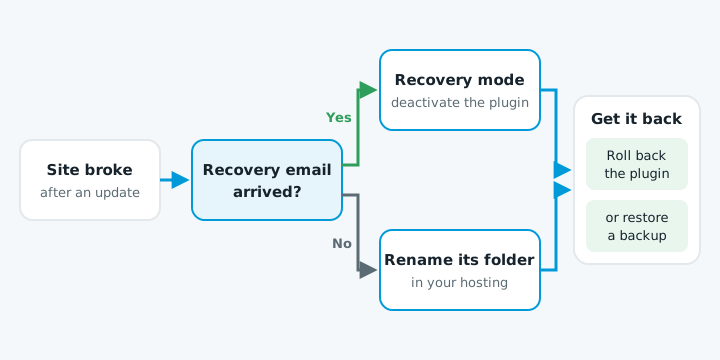
1. Check your email for the recovery link
When a plugin causes a fatal error, WordPress emails the site's admin address. The subject is "Your Site Is Experiencing a Technical Issue". It names the plugin that caused the problem and includes a link to recovery mode.
- Click the link and log in. Recovery mode pauses the faulty plugin for you, in your browser only, so you can get into the dashboard.
- Go to Plugins. Deactivate the one named in the email.
The link expires after a day. If the error happens again after that, WordPress sends a new one.
2. No email? Rename the plugin's folder
If the email never arrived, you can switch the plugin off through your hosting.
- Log in to your hosting control panel and open the file manager, or connect with FTP.
- Go to
wp-content/plugins/. - Find the folder for the plugin you just updated and rename it, for example
contact-form-7tocontact-form-7-off.
WordPress can't find the plugin any more, so it deactivates it. Reload the site.
If you're not sure which plugin did it, rename the whole plugins folder to plugins-off. That switches every plugin off at once. Once you're back in, rename it back and turn plugins on one at a time until the site breaks again.
3. Find the actual error (optional)
If you want to see what went wrong, add these lines to wp-config.php, above the line that says "That's all, stop editing!":
define( 'WP_DEBUG', true );
define( 'WP_DEBUG_LOG', true );
define( 'WP_DEBUG_DISPLAY', false );
Errors are then written to wp-content/debug.log instead of shown to visitors. Set WP_DEBUG back to false when you're done, and delete the log file.
4. Get the old version back
With the plugin off, the site works but you've lost whatever the plugin did. A booking form or a shop plugin can't stay off for long. You have two options.
| Option | How | Watch out |
|---|---|---|
| Roll back the plugin | The free WP Rollback plugin puts a plugin from the WordPress.org directory back to an earlier version. It doesn't work for paid plugins bought elsewhere; the developer's account area often has older versions to download. | Turn off auto-updates for that plugin until a fixed version comes out, or it will update itself again. |
| Restore a backup | If you have a backup from before the update, restoring it puts everything back as it was. | Anything added since, such as new orders or form entries, may be lost, so note those first. |
5. Tell the plugin developer
Post in the plugin's support forum on WordPress.org, or contact the developer if it's a paid plugin. Include:
- which version broke
- your WordPress and PHP versions
- the error from
debug.log
Often a fix is already on the way. Wait for it before updating again.
How to stop it happening again
- Back up before you update. Every time, and keep the backup somewhere other than the server.
- Update one plugin at a time. Check the site after each one. If it breaks, you know which plugin did it.
- Test on a staging site first. A private copy of your site where an update can break without anyone seeing.
- Don't leave auto-updates unwatched. WordPress can update plugins on its own, twice a day by default, and emails you afterwards. That's fine if someone reads those emails and checks the site. If nobody does, a broken update can sit there for days.
More on keeping a site in good shape in website maintenance in NZ.
When to get help
Some of this is easy to get wrong. Get someone in if:
- You can't get into your hosting control panel or FTP, so you can't rename the folder.
- The update changed the database. Some plugins, especially shop, form and page builder plugins, convert their data when they update. Rolling the plugin back doesn't undo that, and the old version may not read the new data. Restoring a full backup is the safe route.
- You have no backup, or you don't know how old it is.
If you're not sure what state your site is in, our free website check will tell you what's out of date and whether it's backed up.