This warning means the browser couldn't confirm your site's certificate. It has expired, it doesn't cover the address the visitor typed, or the server isn't offering a proper one at all.
The code under the warning tells you which. If you're not sure what a certificate is, start with what an SSL certificate is.
First, check the certificate
- Open the certificate. Click Not secure or the warning icon next to the address. In Chrome, open the connection details, then the certificate.
- Check two things: the dates it's valid between, and the names it covers.
- Get a second opinion. Run your domain through the free SSL Labs server test. It shows the certificate's dates, names and issuer, and flags problems. Tick the box to keep your result off its public boards if you'd rather.
Match the error code
| What you see | What it means | The fix |
|---|---|---|
| NET::ERR_CERT_DATE_INVALID | Expired certificate, or a wrong clock on one device | Reissue it, or fix the device's time |
| NET::ERR_CERT_COMMON_NAME_INVALID | It doesn't cover the name typed, such as www | Reissue it for every name you use |
| NET::ERR_CERT_AUTHORITY_INVALID | After a move, the new host's default certificate | Issue one on the new host once DNS switches |
| Not secure, page still loads | The page came over plain http:// |
Redirect http:// to https:// |
The certificate has expired (NET::ERR_CERT_DATE_INVALID)
This is the most common cause. Free certificates are short-lived. Let's Encrypt's last 90 days, and the industry rules now cap any certificate at 200 days, dropping to 100 days in March 2027 and 47 days in March 2029. Nobody renews that often by hand, so renewal has to be automatic.
When it expires anyway, the automatic renewal failed. A common reason is a recent DNS or hosting change. To renew, Let's Encrypt checks a file on your domain, so if the domain now points somewhere else, the check fails quietly until the date passes.
The fix:
- Reissue it in your hosting panel. In cPanel this is usually under SSL/TLS Status or AutoSSL.
- If it fails again, check DNS points your domain at this host.
- On Cloudflare, check its SSL settings too.
The certificate doesn't cover this name (NET::ERR_CERT_COMMON_NAME_INVALID)
A certificate lists the exact names it's valid for. If it covers yourbusiness.co.nz but not www.yourbusiness.co.nz, anyone who types the www version gets a warning. The same happens when you add a new domain or switch from .com to .co.nz and the certificate wasn't reissued.
The fix: reissue the certificate so it includes every name you use, with and without www. Then redirect the extra names to your main one.
You've moved to a new host
Straight after a move to a new host, the new server may not have a certificate for your domain yet. Many hosts can only issue one once your DNS points at them.
Until then the browser gets the server's default certificate. It may not be from a trusted issuer (NET::ERR_CERT_AUTHORITY_INVALID) or may carry the host's name.
The fix: once DNS has switched over, issue the certificate in the new host's panel. If the domain has lapsed rather than moved, see what to do when your domain expires.
'Not secure' but no full warning
If the address bar says Not secure but the page still loads, there's no certificate error. The page came over plain http://. Chrome shows this for any page without a private connection.
The fix: set your site to redirect every http:// address to https://. Most hosting panels have a switch for this.
Mixed content
A related problem is a secure page that loads images, scripts or stylesheets over http://. Browsers now upgrade most images to https automatically and block insecure scripts and stylesheets. So the usual symptom is missing styling or a broken feature rather than a warning.
On WordPress:
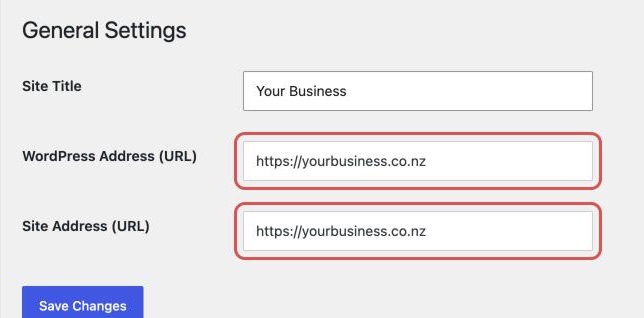
- Check Settings > General. Both the WordPress Address and Site Address should start with
https://. - Update the old links. Back up first, then change the
http://links in your content with a plugin such as Better Search Replace, or WP-CLI'ssearch-replace.
Only one person sees it
If the warning shows on one computer or phone and nowhere else, check that device's date and time. Chrome's own help says a wrong clock causes NET::ERR_CERT_DATE_INVALID. Set the device to update its time automatically. Your site is fine.
When to get help
If you've reissued the certificate and it still fails, or your hosting panel has no option to issue one, ask your host. Send them your domain, the error code and a screenshot.
Treat it as urgent if customers are trying to reach you. They can't tell your warning apart from a real attack. For the other quick checks, see the website down checklist.
Once the padlock is back, our free website check looks over your site the way a customer would.