If customers say your site sends them to spam, but it looks fine when you open it, your site has almost certainly been hacked. These hacks are built to hide from you: they often only fire for people on phones or people who clicked through from Google.
First, follow what to do in the first hour: tell your host, change passwords, check for unknown admin users. Then come back here.
Why you can't see it
The hacked code checks who is visiting first. Google says hacked sites can redirect some users based on where they came from, their browser or their device.
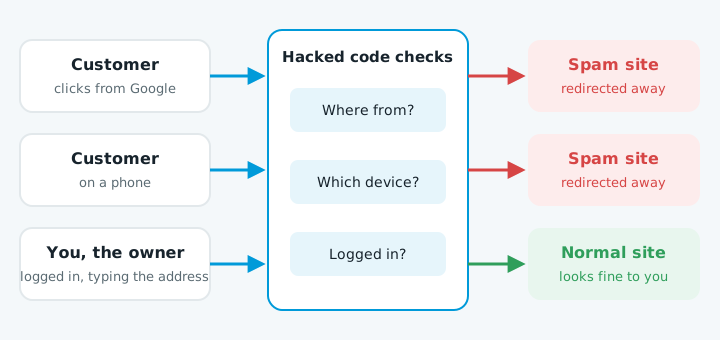
| Version | Who gets redirected | Who sees the normal site |
|---|---|---|
| Only from Google | People clicking your site in Google search results | People typing the address straight in |
| Only on phones | Mobile visitors | Desktop visitors |
| Not for logged-in users | Visitors who aren't logged in | Anyone logged in, so the owner never sees it |
The last one is how some WordPress malware works.
The "Japanese keyword hack" is a related trick. It creates new pages of Japanese text linking to shops selling fake brand goods. Click one and you might be redirected, see gibberish, or get "page not found". Google warns that not-found page can be fake.
How to confirm it
- Search Google for
site:yourdomain.co.nz. Look through a few pages of results for addresses you don't recognise or titles in another language. - Click a result from your phone. Use a private or incognito tab so you're not logged in, and click through from Google rather than typing the address. Try it a few times.
- Check Search Console. If you have Google Search Console, open Security issues. It names the type of hack and lists some affected pages, not all of them.
- Use URL Inspection. Paste an odd address into the URL Inspection tool and run a live test. It shows what Google's crawler actually gets.
- Check who else owns your Search Console. Go to Settings, then Users and permissions. An owner you don't know is a strong sign of a hack.
Where it hides
On WordPress sites, the usual spots are:
| Where | What to look for |
|---|---|
.htaccess, a hidden settings file in the site's main folder |
Rules that check whether a visitor came from a search engine or is on a phone, then send them away |
wp-config.php and core files like wp-load.php or index.php |
Extra code added near the top or bottom |
The theme, especially functions.php, header.php and footer.php |
Extra code added |
| The database | JavaScript added to posts or settings |
| A fake plugin | A harmless or security-sounding name, sometimes hidden from the plugin list |
| Scheduled tasks (WordPress cron) | Jobs that put the malware back or recreate a hidden admin user |
The code is usually scrambled. Look for long strings of random characters and words like eval or base64_decode.
Why deleting the spam pages doesn't work
The spam pages are the symptom. Often they aren't real files at all. They're made on the fly by code sitting somewhere else. Delete the pages you can see and that code makes new ones.
There's often a second copy, a fake plugin or a scheduled task waiting to reinstall it. Google's cleanup guides say to:
- Replace
.htaccesswith a clean version. - Reinstall WordPress and every theme and plugin from fresh copies.
- Check what remains.
The way they got in still needs closing too.
Getting Google's warning removed
Google shows "This site may be hacked" until the owner acts. Google says to fix the problem across the whole site first. Fixing only some pages won't get a partial return. Once the whole site is clean:
- Remove any Search Console owners you don't recognise, and their verification files.
- Check your sitemap in Search Console for spam addresses.
- Run the old spam addresses through URL Inspection again to confirm they're gone.
- In Security issues, click Request review. Say what you found, what you fixed and how.
Reviews can take several days or weeks.
Then keep the site updated so it doesn't happen again. See website maintenance.
When to get help
Confirming it is the easy part. Get someone in if you can't find the code, if the spam comes back after you cleaned it, if there are files you don't understand, or if you can't get into your hosting at all.
If you're not sure whether your site is affected, our free website check is a good place to start.