Two-factor authentication (2FA) means signing in needs your password plus a second step, usually a tap or code on your phone. Turn it on for every email account in the business, and use an authenticator app or security key rather than text messages where you can.
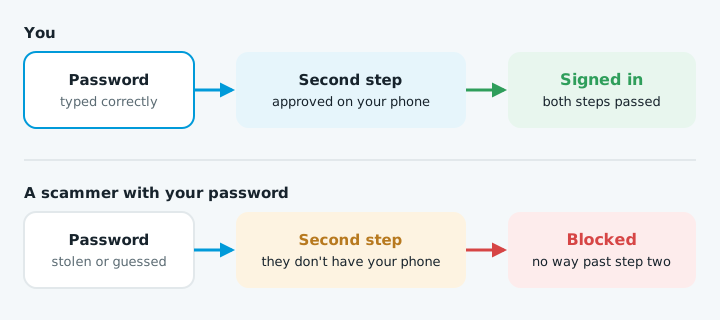
Email comes first: password resets for everything else land there, and someone in your mailbox can reply as you, which is how many fake invoice scams work.
Which second step to choose
Own Your Online, the National Cyber Security Centre's advice site, ranks the methods from weakest to strongest:
| Method | How it works |
|---|---|
| Text message or email code | A code is sent to you. Can be intercepted |
| Authenticator app | An app on your phone makes codes |
| Push notification | Your phone asks "Is this you?" and you tap to approve |
| Number matching | You type a number from the sign-in screen into your phone |
| Security key | A small device you plug in or tap. Resistant to phishing |
A text message code is still far safer than no second step.
Google Workspace
- Go to myaccount.google.com and sign in with your work email.
- Select Security & sign-in, then Turn on 2-Step Verification.
- Add a backup method, such as an authenticator app as well as Google prompts.
- Save your backup codes somewhere safe.
If the option isn't there, an admin ticks Allow users to turn on 2-Step Verification in the Google Admin console, under Security > Authentication > 2-step verification. Setting Enforcement before people enrol locks them out, so give everyone a start date.
Microsoft 365
New Microsoft 365 accounts have security defaults on, which make everyone register with Microsoft Authenticator. To set it up yourself:
- Install Microsoft Authenticator on your phone.
- Go to mysignins.microsoft.com/security-info and sign in with your work email.
- Select Add sign-in method, choose Microsoft Authenticator, then Add.
- In the app, add a work or school account, scan the QR code and approve the test notification.
If security defaults are off, an admin can turn them on in the Microsoft Entra admin center under Entra ID > Overview > Properties > Manage security defaults. They also block older email apps that can't do a second step.
If you lose your phone
- Have more than one method, so losing one device doesn't lock you out.
- Keep your Google backup codes. Choose "Try another way" when signing in.
- Ask your admin. They can issue Google backup codes, or clear your Microsoft 365 methods so you register again.
- Don't change all your methods at once. Microsoft warns this can restrict your account for 30 days.
When to get help
If you have several staff, an admin nobody can reach, or you think someone has already been in a mailbox, it's worth handing over. A wrong enforcement setting can lock the whole team out. Talk to us.